SOLVER basics 1
Download: SolverBasics-p1_init.xlsx
Introduction
This is the first of a two-part screencast that is Excel-focused. Specifically, you will explore how to use the SOLVER add-in that comes with Excel.
Excel’s Solver is written by a third party (Frontline Solvers) which also sells more powerful commercial versions. It is a tool for optimization and can be used for many purposes. We will use it to demonstrate the optimization criteria for least-squares regression and also to perform nonlinear regression and weighted least-squares regression. However its use extends far beyond regression analysis so it is worth mastering for many reasons. For example it can be used to solve simultaneous equations, even if they are nonlinear, or to find the root(s) of a function. You can even use it to solve the Schrödinger equation!
Excel’s Solver can be found in the Data ribbon. When you click on it you see the following input form.
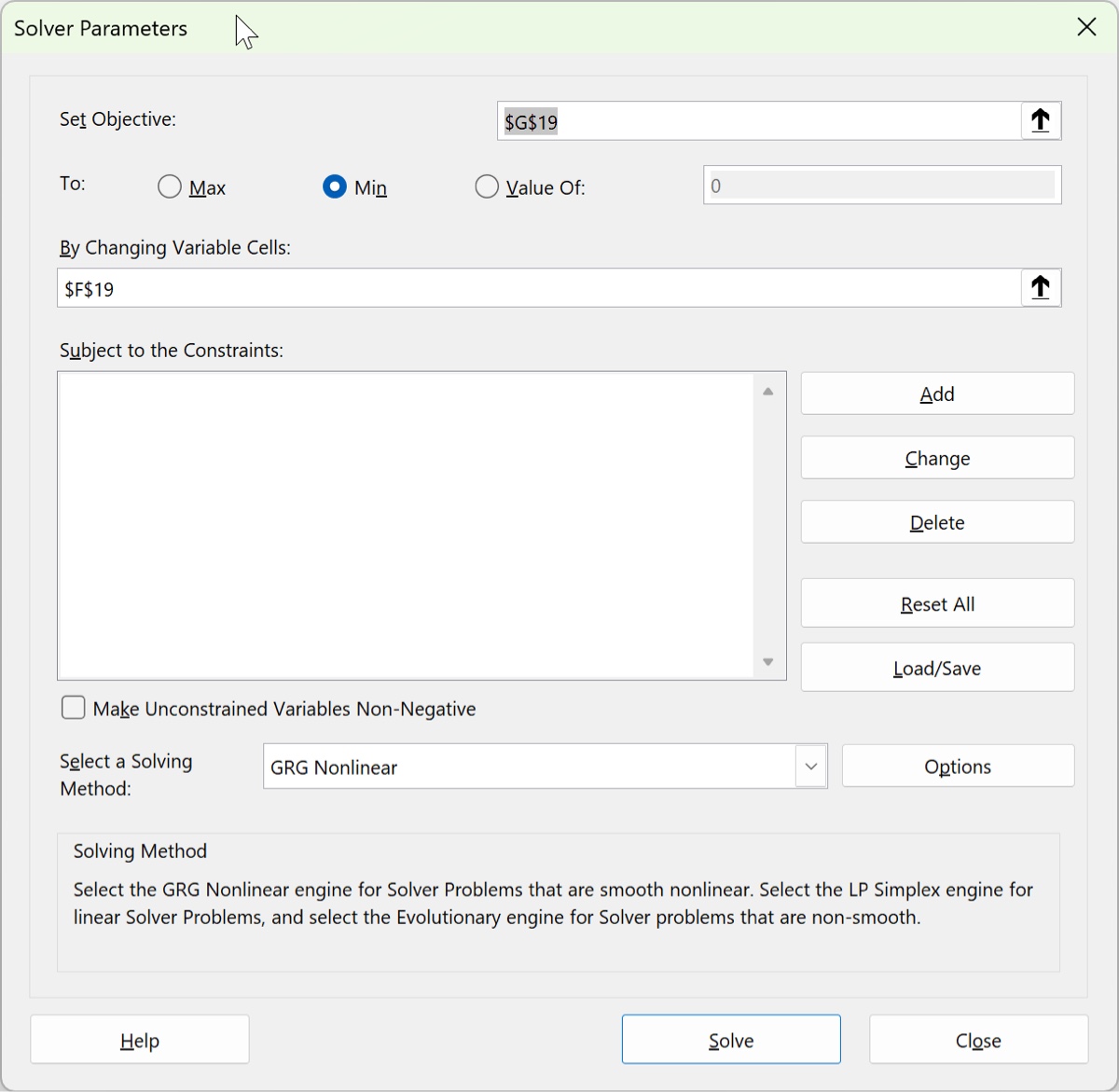
The first three sets of input are the most important:
- the objective cell is a single cell that contains a cell formula that depends on one or more variable cells. The objective cell determines the criterion that you are trying to optimize. In least-squares regression this will be the (possibly weighted) sum of squared residuals.
- the three radio controls determine what you are trying to optimize with respect to the objective cell: maximize it, minimize it, or set it to a fixed value (often zero).
- the variable cells are the things that
SOLVERwill change in pursuing its optimization goal. These cells should be inputs into the objective cell formula, and changing them should produce a change in the value in the objective cell.
Basically SOLVER explores a hyperdimensional surface (the value of the objective as a function of the input variable cells) and attempts to find a minimum (all other objectives can be described in terms of a minimum). There are three solving methods that SOLVER can use for this purpose:
- Simplex LP for linear problems
- GRG Nonlinear for smooth nonlinear problems; this is the method we use for least-squares regression
- Evolutionary for non-smooth problems, using a genetic-style algorithm
Learning Goals
- Understand the nature of Excel’s
SOLVERand how to use it - Explore
SOLVER’s methods and options
Tasks
- Set and use
SOLVERto search for the minimum of the function. Make sure you are using the default “Single Start” option in the GRG method. - Set and constrain so that (this will require two constraints). You will seek a maximum: make a prediction of what
SOLVERwill do and then invoke it to find a solution, and generate a report. - Now switch the GRG options to “Multistart.” We will try to find a global minimum, subject to the constraints on (which should still be in place). Run
SOLVERand generate a report.