Keyboard Shortcuts 1
Download: KeyboardShortcuts1_initial.xlsx
Introduction
One difference between proficient and novice Excel users: the former knows a handful of important keyboard shortcuts. There is no question that for most tasks reaching for the mouse is slower than using the keyboard but it isn’t just a matter of speed. When you are working in Excel you want to focus on your data and the operations for manipulating, visualizing, and analyzing that data. If you have to stop and perform point and click operations so much that it slows you down, it will take you out of the moment. Basically: a larger fraction of your processing power is focusing on how to get Excel to do what you want rather than performing the data analytic operations you want to do.
What’s more, when you have larger data sets, using a mouse and scrollbars is not just slow but painfully, excruciatingly slow. Invest in yourself and practice keyboard shortcuts. Whenever you find yourself reaching for the mouse ask yourself if there is a better way. Usually the answer is yes though there are indeed some operations that are quite speedy with the mouse. If you think there is a faster way but don’t know it, look it up and use it. Before long it becomes muscle memory.
You don’t need to know hundreds of keyboard shortcuts, I’m not even sure that is possible. A dozen of the most important ones are enough at first. Consider the ones in the table below as a good start. The ones you use are the ones your fingers will remember without you consciously thinking about it.
The Function Keys
The function (“F”) keys along the top of the keyboard usually have dual functions. Unfortunately computer manufacturers seem to prioritize things like screen brightness and sound control over actual work. Many keyboard shortcuts in Excel use the Function keys and by default you’ll have to press the fn key on the keyboard to access those shortcuts. Do yourself a favor and prevent RSI: find out how to remap the function keys so that fn is needed to control sound and brightness (etc) and you don’t need to press it in Excel.
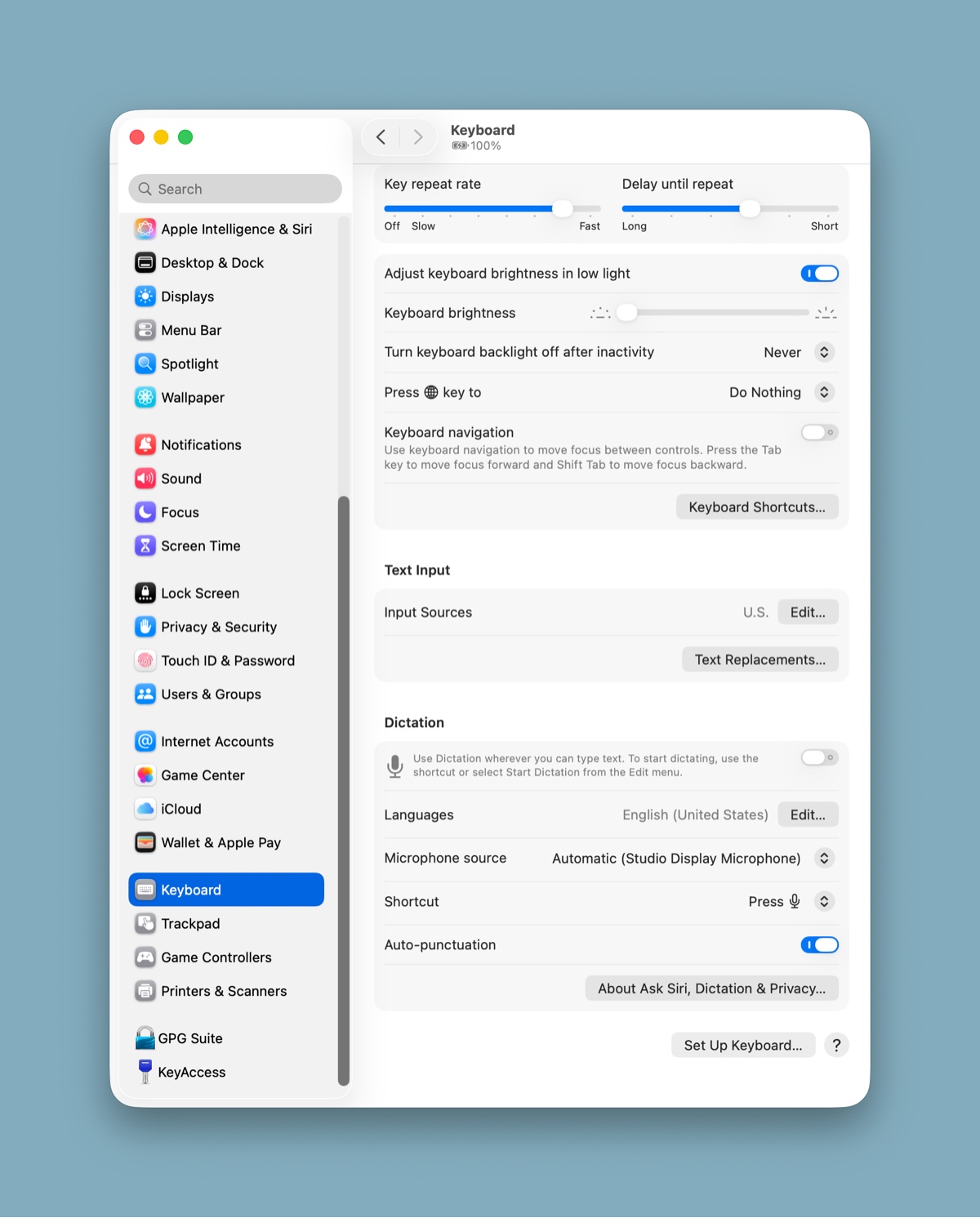
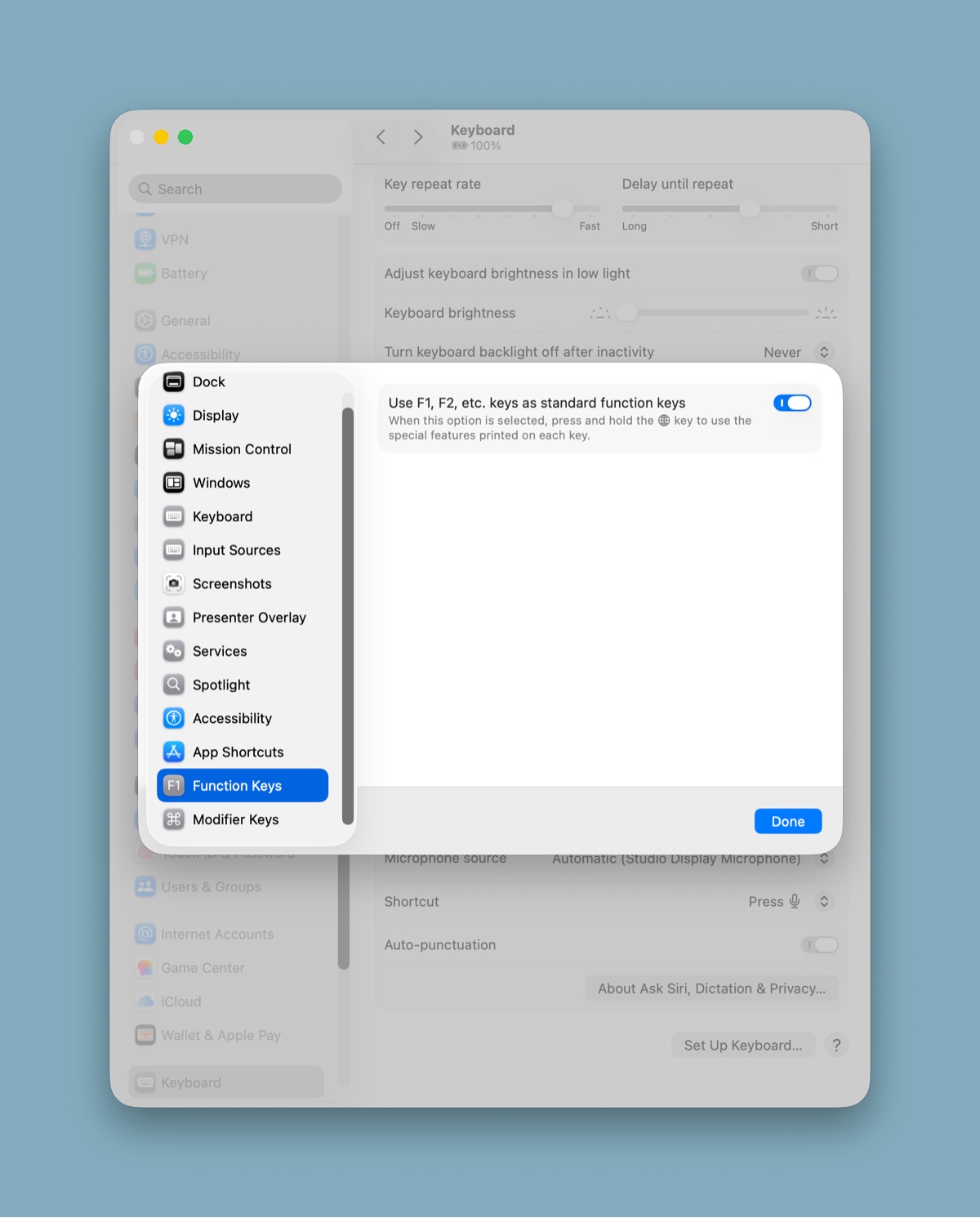
In the screencast I address a little how to do this for a Windows PC but the video is old and I don’t use those PCs so you should look into this on your own. I’ve heard the setting is manufacturer-specific, but you can Google it or ask your favorite AI chatbot. On a Mac, go to your System settings, click on Keyboard (first image below) and then Function Keys (second image). Toggle the “Use F1, F2, etc, keys as standard function keys” so that it is ON, and you are set.
Common Keyboard Shortcuts
The keyboard shortcuts reviewed in the screencast are listed below and also in the attached file.
Download: Keyboard-Shortcuts-table.pdf
| Action | Windows | Mac |
|---|---|---|
| Copy | CTRL-C | CMD-C |
| Cut | CTRL-X | CMD-X |
| Paste | CTRL-V | CMD-V |
| Undo | CTRL-Z | CMD-Z |
| Move to the top of contiguous block | CTRL-up | CMD-up |
| Move to bottom of contiguous block | CTRL-down | CMD-down |
| Move to right of contiguous block | CTRL-right | CMD-right |
| Move to left of contiguous block | CTRL-left | CMD-left |
| Select cells (combined with movement key) | SHIFT | SHIFT |
| Select entire row of spreadsheet | SHIFT-space | SHIFT-space |
| Select entire column of spreadsheet | CTRL-space | CTRL-space |
| Select discontinuous blocks | SHIFT-F8 | SHIFT-F8 |
| Delete cells | CTRL-minus (ie CTRL “-”) | CTRL-minus (ie CTRL “-”) |
| Insert cells | CTRL-SHIFT-plus (ie CTRL SHIFT “+”) | CTRL-SHIFT-plus (ie CTRL SHIFT “+”) |
| Toggle cell formula mode | F2 | CTRL-U |