Arrays in Excel 2
Download: ArrayFormulas2_init.xlsx
Introduction
Many times when building a complicated cell formula you might use helper cells (or a helper column). These are cells that hold intermediate values in the calculation, values that you really have no reason to display (and hence clutter the spreadsheet).
It is perfectly fine to use helper cells when you are first figuring out how to craft the cell formula but the final formula should not depend on them and eventually they should be deleted. (Unless of course they are of interest in their own right, in which case they aren’t really helper cells.) Array operations can help you avoid helper cells but a more important tool is the LET function which is essentially a way to store intermediate values in a named variable (scoped only to the cell) rather than in spreadsheet cells.
Learning Goals
- Get a brief introduction to Excel tables (and learn about their incompatibility with array formulas)
- Gain a little deeper understanding of why variance (and hence standard deviation) measures the dispersion or variability of a data set.
- Learn what helper cells/columns are and why to avoid them
- Learn an alternative measure of dispersion: the MAD, and why it is more robust than the standard deviation
- Learn how to calculate the MAD manually and how to use the CLS-Stats
MADfunction
Tasks
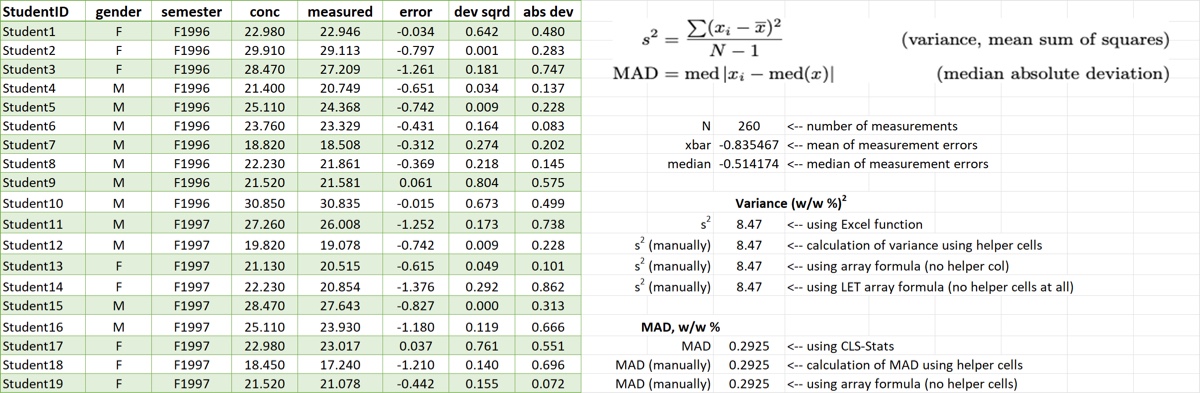
- Calculate the squared deviation as a new column in the table
- Calculate the absolute deviation from the median as a new column in the table
- Calculate the variance four different ways
- using Excel’s
VAR.Sfunction - using the helper column
- using an array formula (without a helper column)
- using the
LETfunction
- using Excel’s
- Calculate the MAD three different ways
- using the CLS-Stats
MADfunction (use the Help window, CTRL-SHIFT-H, if needed) - using the helper column
- using an array formula
- using the CLS-Stats
By the end of the screencast your spreadsheet should look something like the image below.