Manage Lambda Functions
Keyboard shortcut: Ctrl-Shift-M
This is the workhorse procedure for managing lambda functions in your current workbook and updating the CLS-Stats add-in to the latest version of the lambda functions.
Description
A major part of the CLS-Stats add-in is the library of named lambda functions that are available to be used in cell formulas in Excel. Named lambda functions are blocks of code (ie, functions that return values) that live in the spreadsheet. They can be used by anyone even if they don’t have the CLS-Stats add-in installed. They can even be used in online versions of Excel without any problem. They can also grow “stale” if they are updated in the GitHub gist (eg, to fix a bug or to add new features).
The source code for these functions lives in a GitHub gist; that gist is considered the “source of truth” for the lambda source code and any updates containing bug-fixes or new features will be pushed to that location. The code in that gist is parsed and stored as named lambda functions in the CLS-Stats add-in file (CLS_Stats.xlam) that is loaded invisibly whenever Excel is started. Currently that add-in will copy its lambda functions to any new workbook that you create.
So that means there are really three locations for the lambda code:
- The GitHub gist, where the latest version resides.
- The CLS-Stats add-in contains a complete copy of the lambda functions as they existed when last updated.
- A workbook can have a copy of lambda functions, possibly outdated.
The Manage Lambda Functions procedure controls the copying of these lambda functions from one source to another.
Use
When you click on the Manage Lambda functions item in the Utilities menu, or type Ctrl-Shift-M, you are greeted with a dialog box such as the following.
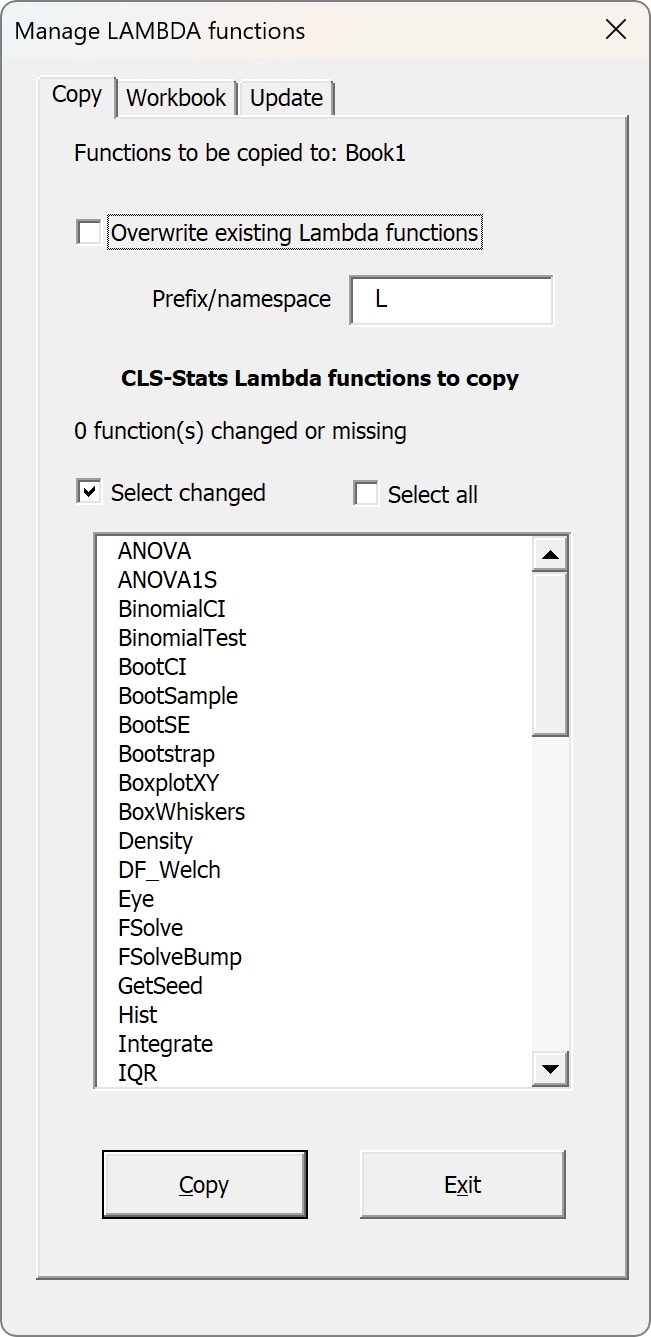
The first tab enables you to copy lambda functions from the (invisible) add-in file to the current workbook. The listing of functions will select by default any functions that are either absent or different from any lambda functions that already exist in the workbook. In the screenshot above, none are selected since the workbook was new and already had up-to-date copies of the lambda functions.
If you want to copy over any lambda functions that already exist (eg to update to a new version of the function) then you should check the “Overwrite existing Lambda functions” box. It is not checked by default.
You can also check “Select all” and the “Overwrite existing functions” boxes and copy over the current workbook if you want. You can also change the prefix of the lambda functions when they are copied so that two versions exist in the current workbook. This could be a way for you to test any updated function in existing Excel formulas to make sure no breaking changes were introduced. (Also see the next tab for this.)
The second tab is shown below.
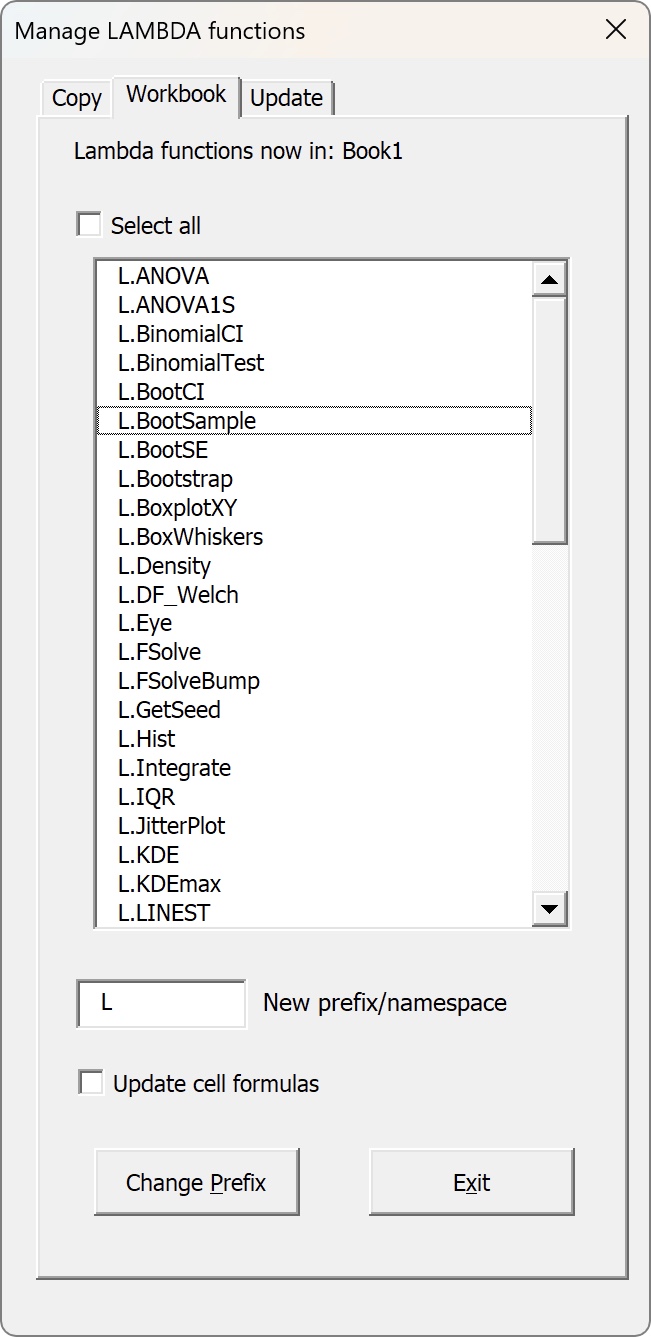
This tab allows you to change the prefix of any or all the lambda functions that currently exist in the workbook. You can optionally also update cell formulas that already exist that use those functions.
There are two main use cases for this tab. One is if you don’t like the default L. prefix, you can change it here. (Eventually you will be able to change that default to suit your preference.) You can even eliminate the prefix entirely (ie leave that text input blank) though that is not recommended. If you do that then you can just call the lambda functions as if they were regular Excel functions, without the prefix. Personally I like having a prefix so that when I am creating or editing a cell formula, typing the prefix will list all the lambda functions I have installed.
The other use case is if you are using an important function in a workbook and that function has been updated. You might want to be careful about updating a function to make sure your spreadsheet still works. (Of course you can always simply duplicate the file first as a precaution.) For such a function, I typically change the prefix, maybe to M. or old. (yes, you can use multiple letters as the prefix) and change the cell formulas too. Then I copy the updated function into the workbook using the first tab and I go to each cell formula and change to the new prefix to see what changes and if any error is thrown. (Note that a bug fix – eg correcting output values – is not “breaking”!)
The third tab is shown below. It doesn’t change the current workbook at all; it is a way to update your CLS-Stats lambda functions to the latest version (if one exists later than the one currently in your add-in).
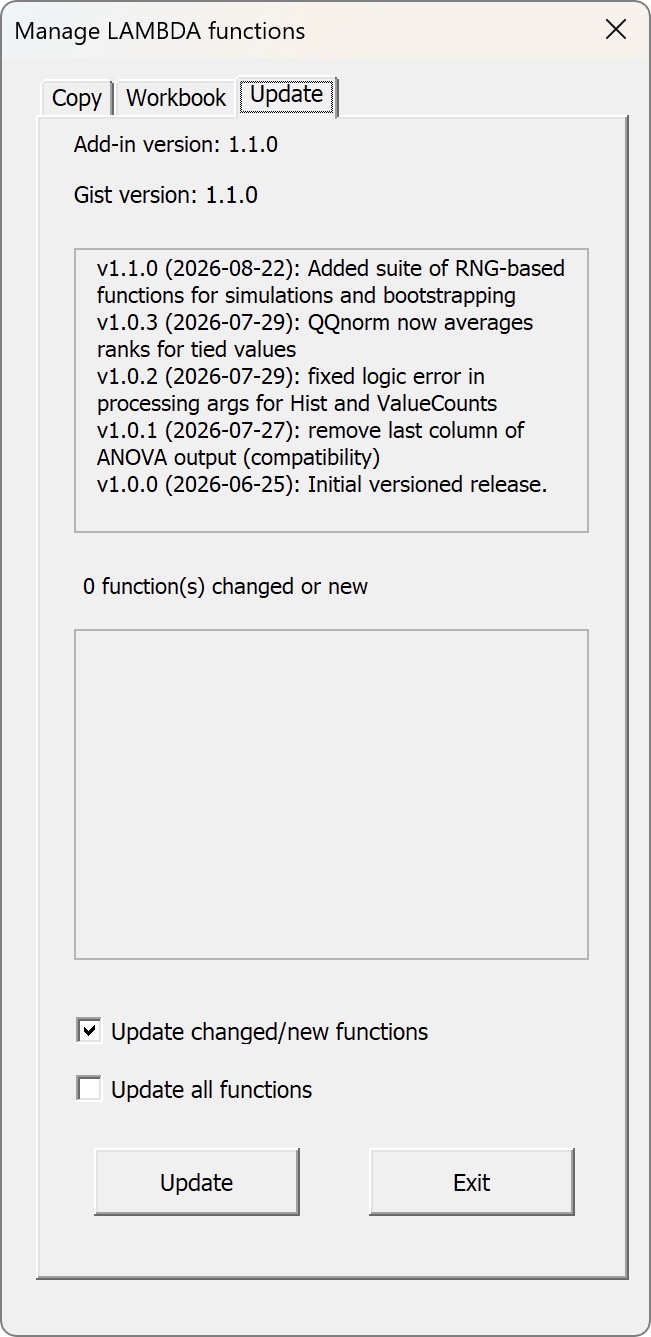
The tab displays the results of two comparisons:
- It compares the lambda collection version numbers between the number in the add-in and the number in the Gist. The Gist should be considered the “source of truth.”
- The second comparison is a byte comparison of lambda functions between the GH Gist and the add-in, just in case there were changes made that did not result in a version number update.
You have the option to update any changed functions (recommended). This does nothing to the current workbook! It only changes the version of the lambda functions stored in the add-in; remember that future new workbooks will have those updated functions. If you want to have those changes in the current workbook as well you will need to copy them over using the first tab.
It is worth pointing out that old workbooks may have older/stale versions of add-in functions. At this time there is no automatic comparison upon workbook open to see if there has been an update (that may be added at some point) so it is up to you to open up this “Manage Lambda Functions” dialog box and examine the list in the first tab to see if there are any differences.